
Boarding Form Templates
Configure appearance, behavior, and branding for Preczn-hosted boarding forms
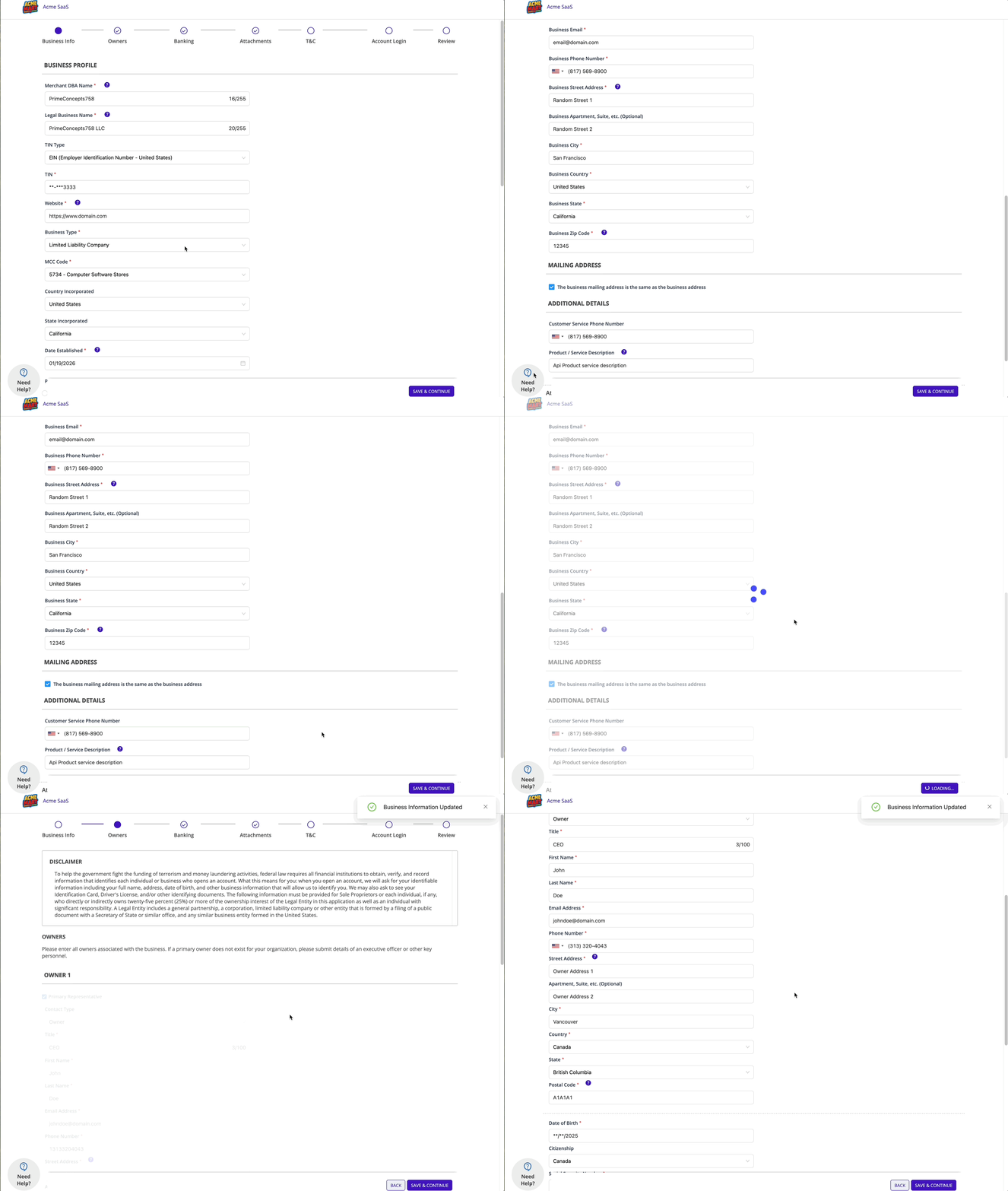
Form templates control the appearance and behavior of your boarding forms—logo, colors, return URLs, expiration settings, and optional features like terms acceptance and auto-submit. Create templates in the Dashboard and reference them when generating form links.
Customization Scope
Boarding forms support branding customization—logo, colors, and support contact information—but the form structure, layout, and fields are determined by connection requirements.
What you can customize:
- Logo and header text
- Colors (header, accent, buttons)
- Return and expiration URLs
- Support contact information
- Form expiration duration
- Terms of service display
What is fixed:
- Form sections and their order
- Field labels and input types
- Form layout and styling (no custom CSS)
- Required vs optional field behavior
Need additional customization?
If you have a customization need that isn't currently supported:
-
Small enhancements - Reach out to your Preczn contact. We're always evaluating ways to expand form customization options. Since boarding forms are shared infrastructure, we consider how changes benefit all platforms when prioritizing enhancements.
-
Bespoke requirements - For highly customized merchant experiences, we recommend building your own forms using the Onboarding API. This gives you complete control over the user experience while Preczn handles the data storage, validation, and processor submission.
Template Inheritance
When you create a form, it inherits all configuration from the specified template at that moment. You can also override any property at form creation time—the template simply provides defaults.
flowchart TD
    subgraph TEMPLATE ["TEMPLATE"]
        T1["returnUrl: /success"]
        T2["expiration: 24hrs"]
    end

    subgraph CREATE ["CREATE REQUEST"]
        C1["merchantId"]
        C2["expiration: 72hrs"]
    end

    subgraph RESULT ["FINAL FORM"]
        R1["returnUrl: /success"]
        R2["expiration: 72hrs"]
    end

    TEMPLATE -->|"1. Copy"| RESULT
    CREATE -->|"2. Override"| RESULT

    style T2 fill:#ffcccc,stroke:#cc0000,stroke-width:2px,color:#000
    style C2 fill:#ccffcc,stroke:#009900,stroke-width:2px,color:#000
    style R2 fill:#ccffcc,stroke:#009900,stroke-width:2px,color:#000
The template default (24hrs, red) is replaced by the override (72hrs, green). All other properties inherit unchanged.
How it works:
- You create a template with your standard settings (branding, URLs, expiration, etc.)
- When generating a form link, you reference the template ID
- The form inherits all template properties as a snapshot
- You can override any property in the form creation request
Example: Your template sets expirationInHours: 24, but for a specific merchant you need more time. Pass expirationInHours: 72 when creating the form to override just that property—all other template settings are inherited.
Point-in-Time InheritanceTemplate properties are copied to the form when the form is created. If you update a template, existing forms are not affected—they retain the configuration from when they were generated. Only forms created after the template update will use the new settings.
This design lets you:
- Define standard configurations once in templates
- Customize individual forms when needed without creating new templates
- Avoid repeating the same configuration for every form
- Update templates without impacting in-progress merchant forms
See Boarding Forms API Reference for the full list of override-able properties.
Prerequisites
Before creating a form template, you need a configured domain. See Configuring Domain Names for DNS and SSL setup instructions.
Creating a Template
Via Dashboard:
- Navigate to Settings → Boarding Forms
- Click "Create Template"
- Configure the template settings (described below)
- Save the template
Via API:
POST /v1/form-templatesSee Boarding Forms API Reference for endpoint details.
Template Configuration
Required Settings
| Field | Description |
|---|---|
| name | Template name—displayed in the browser tab and used to identify the template in the Dashboard |
| domain | Your configured domain (e.g., https://boarding.yourdomain.com). Must be set up before creating the template. |
| returnUrl | URL where merchants are redirected after completing the form |
| expirationUrl | URL where merchants are redirected when accessing an expired form |
| expirationInHours | Hours until form links expire (1-2160, default: 24) |
| displayTos | Whether to show the Terms & Conditions section in the form |
Branding (Heading)
Customize the form header appearance:
| Field | Description | Default |
|---|---|---|
| logo | Your logo image (recommended: 250×100 pixels, JPG/PNG, max 2MB) | — |
| heading.title | Header text displayed on the form | — |
| heading.titleColor | Hex color for header text | #000000 |
| heading.accentColor | Hex color for section progress icons | #4013BE |
Button Styling
Customize form buttons:
| Field | Description | Default |
|---|---|---|
| button.textColor | Hex color for button text | #FFFFFF |
| button.accentColor | Hex color for button background | #808080 |
Optional Features
| Field | Description | Default |
|---|---|---|
| tosUrl | URL to your platform's terms of service (displayed alongside processor terms) | — |
| autoTransmitMerchantData | Automatically initiate onboarding when merchant submits the form | false |
| displayNewUserLogin | Show Account Login section for processor account creation (connection-specific) | false |
| mccCodes | Override your platform's default MCC codes—comma-separated list (e.g., 8699,5733) | Platform default |
Support Information
Configure the help modal that merchants can access during form completion:
| Field | Description |
|---|---|
| support.url | Support website URL |
| support.email | Support email address (opens merchant's email client) |
| support.phone | Support phone number (11 digits, no formatting—e.g., 15551234567) |
| support.text | Additional text displayed in support modal (e.g., "Support available 9am-5pm EST") |
If no support fields are configured, the support button does not display on the form.
Example Configuration
{
  "name": "Standard Onboarding",
  "domain": "https://boarding.yourplatform.com",
  "returnUrl": "https://yourplatform.com/onboarding/complete",
  "expirationUrl": "https://yourplatform.com/onboarding/expired",
  "expirationInHours": 48,
  "displayTos": true,
  "tosUrl": "https://yourplatform.com/terms",
  "autoTransmitMerchantData": true,
  "heading": {
    "title": "Your Platform Name",
    "titleColor": "#1a1a1a",
    "accentColor": "#0066cc"
  },
  "button": {
    "textColor": "#ffffff",
    "accentColor": "#0066cc"
  },
  "support": {
    "url": "https://yourplatform.com/support",
    "email": "[email protected]",
    "phone": "18005551234",
    "text": "Available Monday-Friday, 9am-5pm EST"
  }
}
Form Types
Templates support two form types:
| Type | Purpose |
|---|---|
| KYC (default) | Standard onboarding form for collecting merchant data |
| RFI | Request for Information form for collecting additional data after initial onboarding |
When autoTransmitMerchantData is enabled:
- KYC forms: Automatically initiate merchant onboarding upon submission
- RFI forms: Automatically patch the new data to the connection
Expiration Best Practices
Form links expire after the configured expirationInHours duration. Consider these factors when setting expiration:
- Security: Shorter expirations reduce the window for unauthorized access to form links
- User experience: Merchants need enough time to gather required documents and information
- Use case: Self-service signup may need longer durations; sales-assisted flows can use shorter ones
Recommendation: Use the shortest expiration that supports your use case. For most scenarios, 24-72 hours provides a good balance.
When a form expires:
- The link redirects to your
expirationUrl - Partially completed data is preserved on the merchant record
- Generate a new form link to continue data collection
Auto-Transmit Behavior
When autoTransmitMerchantData is true:
- Merchant completes all form sections
- Merchant clicks Submit on the final Review page
- If all requirements are satisfied, Preczn automatically:
- For KYC forms: Initiates onboarding (connection status changes to
Queued) - For RFI forms: Patches the data to the connection
- For KYC forms: Initiates onboarding (connection status changes to
Submit Button RequiredAuto-transmit only triggers when the merchant clicks Submit. Completing fields without submitting does not trigger the automatic action.
When autoTransmitMerchantData is false (default):
- Completing the form saves data to the merchant record
- You must manually initiate onboarding via Dashboard or API
Managing Templates
Viewing Templates
Templates are listed in the Dashboard under Settings → Boarding Forms. Each template shows:
- Template name
- Associated domain
- Form type (KYC or RFI)
- Test mode indicator
Updating Templates
Template updates apply to new form links only—existing form links continue using the settings from when they were generated.
Test Mode
Templates are environment-specific. Create separate templates for test and production modes to maintain isolated configurations.
Related Pages
- Boarding Forms - Overview and merchant experience
- Configuring Domain Names - DNS and SSL setup for custom domains
- Boarding Forms API Reference - API endpoints for templates and forms
Updated 3 months ago