
Adyen for Platforms - Merchant Onboarding
Configure your Adyen for Platforms connection for boarding merchants through Preczn.
Overview
This guide covers everything you need to onboard merchants through your Adyen for Platforms connection — from configuring your connection credentials to initiating the onboarding process.
| Feature | Supported |
|---|---|
| Merchant Onboarding | ✅ Yes |
| Merchant RFI Remediation | ❌ No |
| One-Time Merchant Import | ❌ No |
| Continuous Merchant Import | ❌ No |
Configuring the Connection
Before you can board merchants to Adyen for Platforms, you must first configure an Adyen for Platforms connection in the Preczn dashboard. This connection provides the credentials Preczn needs to communicate with Adyen's onboarding APIs on your behalf.
You need a separate Preczn connection for each Adyen for Platforms merchant account you operate. For example, if you have three Adyen merchant accounts, you should create three distinct Adyen for Platforms connections in Preczn. This ensures merchants are boarded to the correct Adyen merchant account when you assign them to a connection later.
The following fields are required to configure merchant onboarding. Some fields overlap with payment processing — if you have already configured payments on this connection, only the onboarding-specific fields need to be added.
Connection Details
| Field | Description |
|---|---|
| Name | The display name for this connection in the Preczn dashboard (3–25 characters). We recommend using a name similar to your Adyen Merchant Account ID so the connection is easy to identify. |
| Company ID | The root-level Company ID for your Adyen account. This value applies across all merchant accounts under your Adyen company. |
| Adyen Merchant Account ID | The merchant account ID of the specific Adyen for Platforms account you are connecting to this Preczn Platform connection. |
API Keys
Onboarding requires three API keys, each created in the Adyen Customer Area under Developers > API credentials. Navigate to your company account (not the merchant account) to create each key.
Onboarding Permissions OnlyThe API key permissions listed below are the minimum required for merchant onboarding through Preczn. If you are also using Preczn for payment processing and tokenization, additional permissions will be required. Refer to the relevant integration guides for those permission requirements.
Missing Permissions in Adyen Customer Area?Some of the permissions listed below may not be visible in your Adyen Customer Area by default. If you are unable to locate a required permission or role, contact Adyen Support to request access. This is a common configuration step when setting up Adyen for Platforms integrations.
Payments API Key
This key authorizes Preczn to manage accounts on your behalf. It can also be used for payment processing if you configure both use cases on the same connection.
- Click Create new credential.
- Select Payments as the credential type.
- Set the type to Web Service User.
- Under Permissions, enable the following:
| Section | Permission |
|---|---|
| Account | Management API - Accounts read |
| Account | Management API - Accounts read and write |
| Account | Management API - API credentials read and write |
| Account | Management API - Payout Account Settings Read |
| Account | Management API - Webhooks read |
| Account | Management API - Webhooks read and write |
| Account | Management API - Payment methods read |
| Account | Management API - Payment methods read and write |
| Uncategorized | Merchant PAL Webservice role |
- Save the credential and copy the API key.
Shared KeyIf you are also using this connection for payment processing, the same Payments API Key is used for both. When creating the key, make sure all of the permissions listed above are enabled to support both use cases.
LEM API Key
The Legal Entity Management (LEM) API key authorizes Preczn to create and manage legal entities for merchant boarding.
- Click Create new credential.
- Select Platforms as the credential type.
- Set the type to LEM user.
- Save the credential and copy the API key.
No additional permission configuration is needed for this key.
Balance API Key
The Balance API key authorizes Preczn to manage balance platform operations during the boarding process.
- Click Create new credential.
- Select Platforms as the credential type.
- Set the type to Web Service user.
- Under the permission sections, enable the following roles:
| Section | Permission |
|---|---|
| Balance Platform Configuration | Balance Platform BCL role |
| Transfers | TransferService Webservice Initiate role |
| Uncategorized | Platform Components: Admin |
- Save the credential and copy the API key.
Webhook Configuration
Onboarding requires manual webhook configuration so that Adyen can notify Preczn of onboarding status changes.
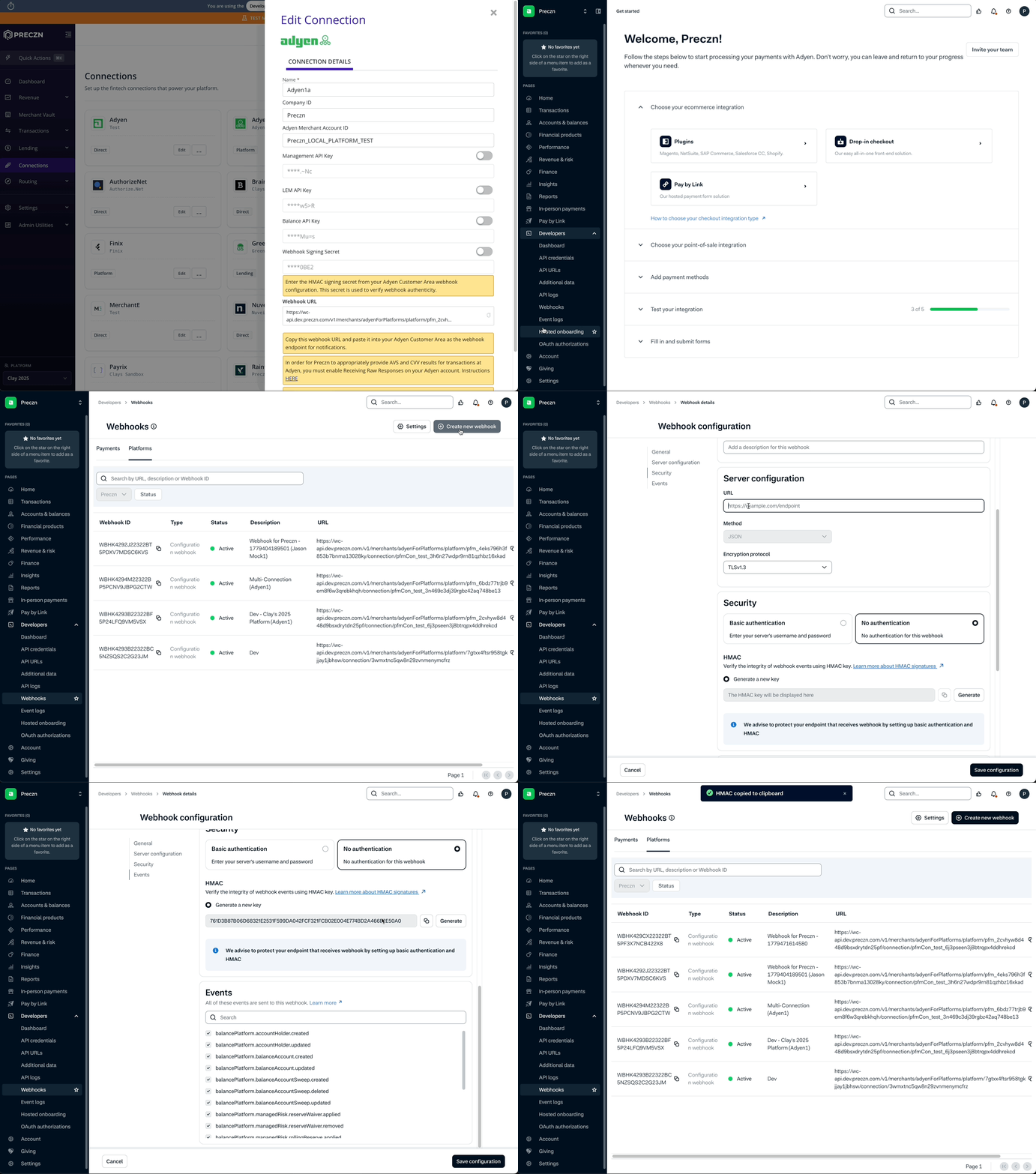
Adyen webhook configuration walkthrough
Webhook URL — After saving the connection, Preczn displays a Webhook URL in the connection details. Copy this URL and configure it as the webhook endpoint in your Adyen Customer Area so Adyen can send onboarding notifications to Preczn.
Configuring the webhook in Adyen — In the Adyen Customer Area, the webhook must be created under your Company account (not under an individual merchant account). Navigate to Developers → Webhooks, select the Platforms tab, and create a new webhook of type Configuration webhook, using the Preczn-provided URL as the endpoint.
Webhook Signing Secret — While configuring the webhook in Adyen, click the Generate HMAC Key button and copy the generated value. Enter this value into the Webhook Signing Secret field on your Preczn connection. Preczn uses this to verify the authenticity of incoming onboarding-related webhook notifications.
Save Your ConfigurationAfter generating the HMAC key, you must click Save Configuration in the Adyen Customer Area. If you generate the HMAC value without saving the configuration, Adyen will not persist the key on its side, and Preczn will be unable to parse incoming webhook events.
Onboarding OnlyThe Webhook Signing Secret and manual webhook configuration are only required for merchant onboarding. For payment processing, Preczn automatically subscribes to payment-related webhooks.
Boarding Payment Methods
When a merchant boards to Adyen for Platforms, Preczn configures a set of payment methods on that merchant's Adyen account. Which methods get configured is set on the connection, so every merchant boarded through it is configured the same way — there is no per-merchant selection.
Boarding payment methods is a multi-select on the connection:
| Option | Value |
|---|---|
| Visa | visa |
| Mastercard | mc |
| American Express | amex |
| Discover | discover |
| ACH | ach |
| China UnionPay | cup |
| Diners Club | diners |
| JCB | jcb |
| Maestro | maestro |
| Affirm | affirm |
Leave the field empty to board the Adyen defaults: Visa, Mastercard, American Express, Discover, JCB, and ACH.
Removing a Method Does Not Disable ItEditing this list changes what future boarding configures. A payment method already configured on a merchant's Adyen account stays active for that merchant — Preczn does not remove it at Adyen.
Affirm
Affirm is a buy-now-pay-later method and is not part of the Adyen defaults. Select it explicitly to board it.
Affirm price plan is required whenever Affirm is selected:
| Option | Value |
|---|---|
| Core | core |
| Standard | standard |
| Signature | signature |
This is the plan you agreed with Affirm for this connection. If you are unsure which applies to you, confirm with your Adyen or Affirm representative before boarding. The connection cannot be saved with Affirm selected and no price plan.
Affirm Must Be Approved on Your Adyen AccountAdyen rejects the Affirm configuration until your Affirm price plan is approved on their side. If boarding reports Affirm as failed with a price-plan message, resolve the approval with Adyen, then retry boarding from the merchant's connection.
Boarding OnlySelecting Affirm configures it on the merchant's Adyen account so the merchant can accept Affirm through Adyen. It does not enable Affirm transactions through the Preczn transaction API.
Boarding Status per Payment Method
Each payment method boards independently. On the merchant's Adyen for Platforms connection you will see a status for each configured method — succeeded, failed, or pending — with the reason when one fails.
Retrying re-attempts only the methods that have not succeeded; anything already configured at Adyen is left alone. If one method fails while the rest succeed, the merchant's connection raises an action banner with a summary, and boarding continues through its remaining steps.
A failed method reports one of the following reasons:
| Reason | What it means |
|---|---|
| Price plan pending approval | Affirm is not yet approved on your Adyen account. Resolve the approval with Adyen, then retry. |
| Validation error | Adyen rejected the request as invalid — confirm the price plan is set and the method is enabled on your Adyen account. |
| Conflict | The method is already configured at Adyen for this merchant. |
| Unknown | Adyen returned an error Preczn does not recognize. The full message is shown with the status. |
Verify and Save
- Click Verify Connection — Preczn validates your credentials against Adyen.
- If verification succeeds, click Add Connection to save.
Credential VerificationPreczn verifies your Company ID, Payments API Key, LEM API Key, and Balance API Key during the verification step. If verification fails, double-check that each key was created with the correct credential type and permissions as described above.
Boarding a Merchant
Once your connection is configured, you can begin boarding merchants to your Adyen for Platforms account through Preczn.
Assign a Platform Connection
Before boarding can begin, each merchant must be assigned to the correct Adyen for Platforms connection. Because each Adyen for Platforms merchant account is configured as a separate connection in Preczn, the selected connection determines which Adyen merchant account the merchant will be boarded to.
Via the Dashboard
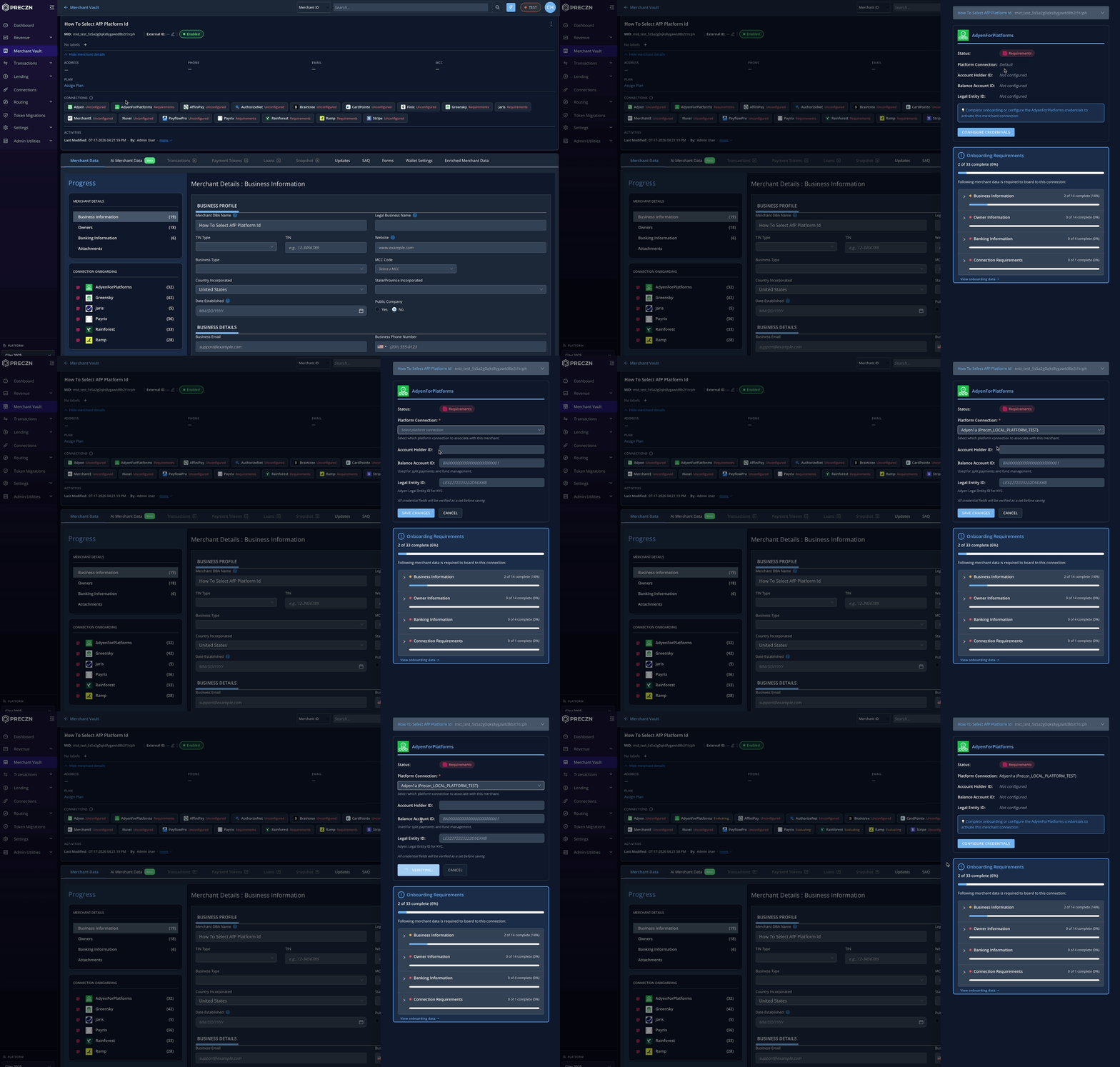
- Navigate to the merchant's profile in the Preczn dashboard. You'll want to click the Adyen for Platforms icon on the merchant connections.
- Select the appropriate Adyen for Platforms connection from the Platform Connection dropdown.
- Save the merchant profile.
Via the API
For integrators managing merchants at scale, you can assign platform connections programmatically using the Preczn API. This is useful for bulk-updating existing merchants or automatically assigning connections as new merchants are created.
Step 1: List available platform connections
Retrieve the Adyen for Platforms connections configured on your platform.
GET /v1/merchants/{merchantId}/connections/AdyenForPlatforms/available-platform-connectionsResponse:
[
  {
    "id": "pfmCon_abc123",
    "name": "US Operations",
    "companyId": "Preczn",
    "processorMid": "PrecznECOM"
  }
]
Use the id value from the desired connection as the platformConnectionId in the next step.
Step 2: Update a merchant with the platform connection
Assign the connection to an existing merchant's Adyen for Platforms processor.
PATCH /v1/merchants/{merchantId}/connections/AdyenForPlatformsRequest body:
{
  "platformConnectionId": "pfmCon_abc123"
}
Bulk OperationsTo assign a platform connection to multiple existing merchants, loop through your merchant list and issue a
PATCHrequest for each one. For new merchants, create the merchant first viaPOST /v1/merchants, then assign the platform connection with thePATCHendpoint above.
Submit via Boarding Forms
Merchants must be boarded using Preczn Boarding Forms. This is required because the Adyen terms of service are dynamically generated as part of the boarding form flow.
Once a merchant has been assigned a platform connection, direct them to complete the boarding form. The form collects the required merchant data and presents the Adyen terms of service for acceptance. Upon submission, Preczn transmits the merchant data to Adyen for underwriting.
For details on creating and configuring boarding forms, see:
- Boarding Forms — Overview and setup
- Creating Forms — Step-by-step form creation
- Boarding Form Templates — Configuring form templates
Boarding Forms RequiredMerchants cannot be boarded to Adyen for Platforms via the API alone. The boarding form is necessary to generate and present the Adyen terms of service, which the merchant must accept before boarding can proceed.
Enabling PCI Compliance in Boarding Forms
When creating a boarding form via the API for an Adyen for Platforms merchant, you can include the displayPciSaq field to display the PCI Compliance step in the onboarding form. This step embeds the required SAQ (Self-Assessment Questionnaire) compliance agreement that the merchant must complete during the boarding process in order to successfully process ecommerce payments with Adyen.
To enable the PCI Compliance step, set displayPciSaq to true in your form creation request:
POST /v1/merchants/{merchantId}/forms

{
  "displayPciSaq": true,
  "displayTos": true
}
Note
displayPciSaqcan only be enabled during form creation via the API at this time. Support for enabling this option in Form Templates and the Dashboard will be added in future releases.
ImportantWithout the PCI Compliance step enabled, merchants boarding through Adyen for Platforms will not be able to process ecommerce payments. Ensure
displayPciSaqis set totruefor any merchant that needs to accept card-not-present transactions.
Updated 24 days ago