
Welcome Section
Add your own introduction, platform agreement, and person-completing capture to the start of a boarding form
The Welcome section is an optional first step you can add to the beginning of a KYC boarding form. It's the only content in a boarding form that you fully author yourself — everything after it (business identity, ownership, banking, and so on) is fixed by your connection's requirements.
Use the Welcome section to:
- Show your own introduction or welcome copy before the merchant starts
- Present a platform agreement the merchant must accept to continue
- Capture who is completing the application (name, email, phone, title)
Each of these three pieces is independently toggleable, so you can use all of them, just one, or none at all.
Opt-In and Invisible by DefaultThe Welcome section only appears if you turn on at least one of its pieces. Every property defaults to
display: false— for brand-new templates and for existing templates that predate this feature. If you never configure it, your forms render exactly as they do today, with no Welcome step and no gap where it would have been.
How the Welcome Step Works
When enabled, the Welcome step renders as the first step in the form, ahead of business identity. It's configured per form template in the dashboard, with the same per-form API override available on every other boarding form section — see API Override below.
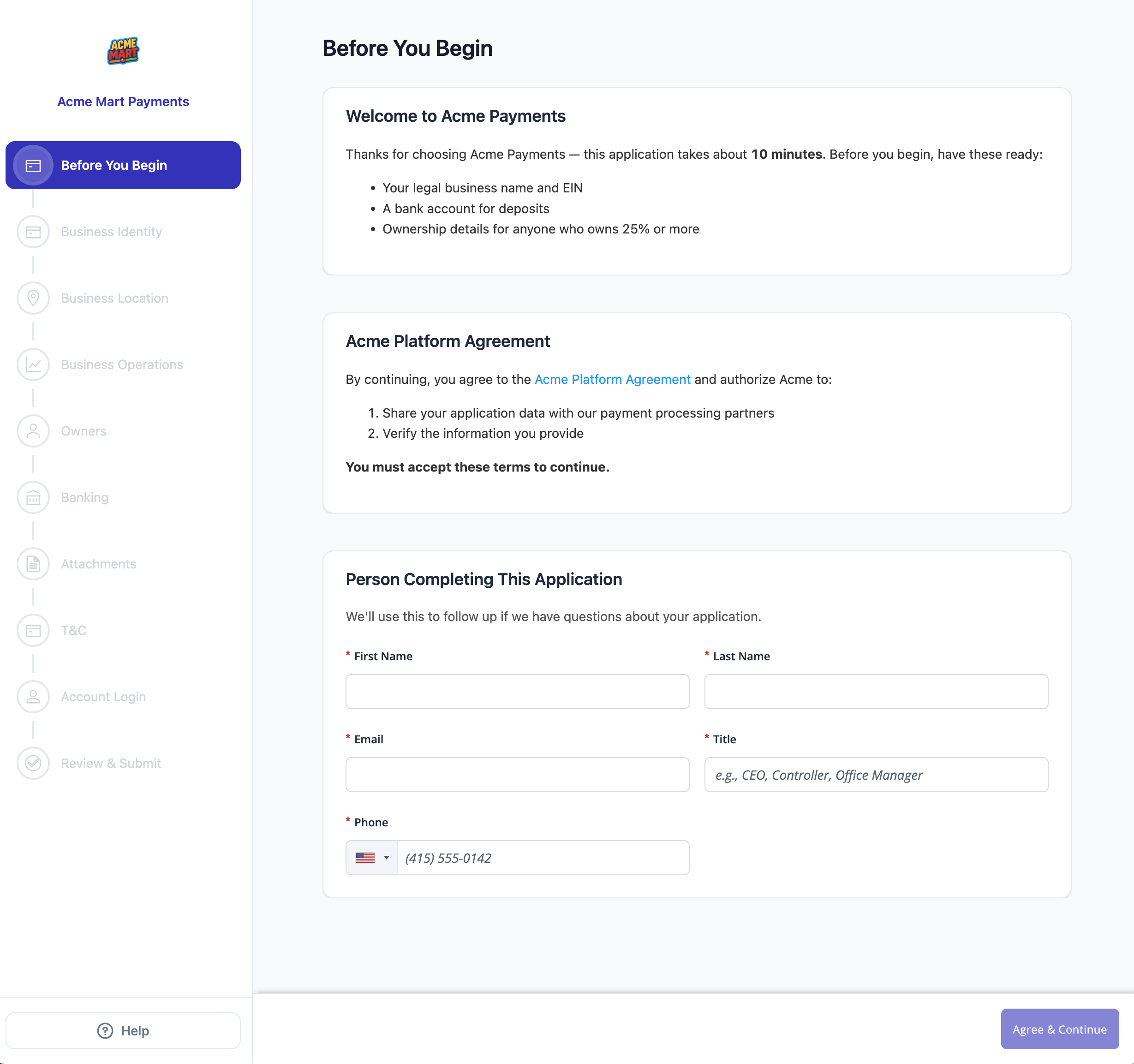
The Welcome step as the merchant sees it: introduction and agreement cards followed by the Person Completing fields and the Agree & Continue button.
flowchart TD
    A[Welcome step] --> B[Render enabled cards in order:<br/>Introduction, Agreement, Person Completing]
    B --> C{Agreement shown?}
    C -- Yes --> D[Agree and Continue]
    C -- No --> E[Continue]
    D --> F{Person Completing<br/>fields submitted?}
    E --> F
    F -- Yes --> G[Server stamps<br/>agreedOn and ipAddress]
    F -- No --> H[Next step:<br/>Business Identity]
    G --> H
The Welcome step renders when introduction.display or agreement.display or any personCompleting.fields.*.display is true. If none are on, no step renders and the button logic above never applies.
KYC Forms OnlyThe Welcome step never appears on RFI (Request for Information) forms — the merchant already completed KYC on their original pass, so there's nothing to welcome them into. If you attempt to submit an RFI form with Welcome-step data, the API rejects the request with a
400.
Dynamic Button LabelThe primary button reads Agree & Continue whenever the Agreement card is displayed — clicking it is the acceptance event. If the Agreement isn't shown, the button reads plain Continue. When Person Completing fields are displayed, the button stays disabled (with a tooltip) until every displayed field is valid.
The step re-hydrates on every load, including reloads after the merchant has already completed it — values remain editable until the full form is submitted.
Configuring the Welcome Section
Configure the Welcome section from a form template's Field Customization tab, the same place you configure every other section (business info, owners, banking). See Boarding Form Templates for the full template editor.
Introduction and Agreement appear as their own toggle rows. Each Person Completing field — first name, last name, email, phone, title — is its own independent toggle row. Selecting Edit on a row opens a drawer where you author that piece's detail:
- The Introduction and Agreement drawers include a title field and a full-height markdown editor for the card's body copy.
- The Person Completing drawer includes the section title and an optional description shown above the contact fields.
Changes commit when you select Apply in the drawer, or discard with Cancel.
Introduction and Agreement
The Introduction card (if shown) renders above the Agreement card. Both are optional and independent — you can show an agreement with no introduction, an introduction with no agreement, or both.
Each card's body comes from its markdown property. Whatever you supply is rendered on the boarding form as formatted content — the merchant sees the formatted result, not the raw text.
Markdown Is Supported and RenderedThe
introduction.markdownandagreement.markdownproperties accept standard Markdown, and the form renders it: headings, bold and italic text, bulleted and numbered lists, links, and blockquotes all display as you'd expect. Plain text renders as plain text — there's nothing to enable. For security, unsafe raw HTML (for example,<script>tags) is stripped before rendering, so author your content in Markdown rather than HTML. Each field is capped at 5,000 characters.
Agreement-Only ConfigurationA common setup is Agreement on, Introduction off, and all Person Completing fields off. This shows only your platform agreement text with an Agree & Continue button and records no
personCompletingdata — useful when you just need an acknowledgment step without collecting anyone's details.
There's no independent "required" flag on Person Completing fields — a displayed field is required to advance, the same convention used by business info, owners, and banking fields elsewhere in the form.
Person Completing This Application
When any Person Completing field is enabled, the section title (defaults to "Person Completing This Application") and your optional description render above the enabled fields. The phone field uses a US/CA phone input and stores the value as E.164 with a leading + (for example, +14155552671).
Because the title and description are yours to set, you can frame this section for either of two purposes — or both at once:
- A point of contact — the person to reach with questions or operations assistance about the in-flight application. A description like "We'll reach out to this person with any questions about your application" sets that expectation.
- The person agreeing to the terms — when an Agreement card is shown, this is the individual accepting it on the business's behalf, and their submission is what records the acceptance evidence (
agreedOn,ipAddress). A description like "This person is agreeing to the terms above on behalf of the business" makes that role explicit.
With an agreement displayed, these aren't mutually exclusive: the same person is both the party accepting the terms and your point of contact for the application.
Config Reference
All Welcome section configuration lives under customFormFields.welcome on the form template.
| Property | Type | Default | Description |
|---|---|---|---|
welcome.sectionTitle | string (≤255 chars) | "Welcome" | Header for the step and its sidebar label |
welcome.introduction.display | boolean | false | Shows the introduction card above the agreement |
welcome.introduction.title | string | "Introduction" | Title of the introduction card |
welcome.introduction.markdown | string (≤5000 chars) | — | Markdown body of the introduction card |
welcome.agreement.display | boolean | false | Shows the platform agreement card |
welcome.agreement.title | string | "Agreement" | Title of the agreement card |
welcome.agreement.markdown | string (≤5000 chars) | — | Markdown body of the agreement, validated server-side |
welcome.personCompleting.title | string | "Person Completing This Application" | Section title above the Person Completing fields |
welcome.personCompleting.description | string | — | Optional helper text shown above the fields |
welcome.personCompleting.fields.firstName.display | boolean | false | Shows the first name field |
welcome.personCompleting.fields.lastName.display | boolean | false | Shows the last name field |
welcome.personCompleting.fields.email.display | boolean | false | Shows the email field |
welcome.personCompleting.fields.phone.display | boolean | false | Shows the phone field (stored as E.164) |
welcome.personCompleting.fields.title.display | boolean | false | Shows the job title/role field |
Authoring the Markdown
Each markdown value holds Markdown source — write it the way you'd write any Markdown. For example, this Introduction:
Thanks for choosing Acme Payments — this application takes about **10 minutes**. Before you begin, have these ready:

- Your legal business name and EIN
- A bank account for deposits
- Ownership details for anyone who owns 25% or more
renders on the form as a paragraph and a bulleted list, below the card's title.
When you send that content through the API, it's a JSON string value — and JSON strings can't contain literal line breaks, so each newline is encoded as \n. The template config below shows the same Introduction (and an Agreement with a link and a numbered list) in that encoded form:
{
  "customFormFields": {
    "welcome": {
      "sectionTitle": "Before You Begin",
      "introduction": {
        "display": true,
        "title": "Welcome to Acme Payments",
        "markdown": "Thanks for choosing Acme Payments — this application takes about **10 minutes**. Before you begin, have these ready:\n\n- Your legal business name and EIN\n- A bank account for deposits\n- Ownership details for anyone who owns 25% or more"
      },
      "agreement": {
        "display": true,
        "title": "Acme Platform Agreement",
        "markdown": "By continuing, you agree to the [Acme Platform Agreement](https://acme.example.com/legal) and authorize Acme to:\n\n1. Share your application data with our payment processing partners\n2. Verify the information you provide\n\n**You must accept these terms to continue.**"
      },
      "personCompleting": {
        "title": "Person Completing This Application",
        "description": "We'll use this to follow up if we have questions about your application.",
        "fields": {
          "firstName": { "display": true },
          "lastName": { "display": true },
          "email": { "display": true },
          "phone": { "display": true },
          "title": { "display": false }
        }
      }
    }
  }
}
Submitted Data and Acceptance Evidence
When the merchant submits the Welcome step, the values are saved as a top-level personCompleting object on the form — a sibling of customFormFields, not nested inside it. Configuration (which fields are shown) and submitted data (what the merchant entered) are separate concerns.
| Field | Set By | Description |
|---|---|---|
firstName | Merchant | First name of the person completing the form |
lastName | Merchant | Last name of the person completing the form |
email | Merchant | Email address |
phone | Merchant | Phone number, stored as E.164 with a leading + |
title | Merchant | Job title or role |
agreedOn | Server | ISO 8601 timestamp stamped at submission |
ipAddress | Server | IP address captured from the submission request |
{
  "personCompleting": {
    "firstName": "Jane",
    "lastName": "Doe",
    "email": "[email protected]",
    "phone": "+14155552671",
    "title": "Owner",
    "agreedOn": "2026-06-30T14:22:08.000Z",
    "ipAddress": "203.0.113.42"
  }
}
Evidence Is Never Client-Supplied
agreedOnandipAddressare acceptance evidence, mirroring thetosDate/tosIpconvention used elsewhere on Preczn forms. They're stamped server-side only when one or more Person Completing fields are displayed and submitted — they're never form fields and are never accepted as input from the client. If zero Person Completing fields are displayed, the continue action records nopersonCompletingobject and no evidence at all; it simply advances to the next step.
sequenceDiagram
    participant Platform
    participant Template as Form Template
    participant API as Create Form API
    participant Merchant
    participant Preczn

    Platform->>Template: Configure customFormFields welcome
    Platform->>API: Optionally override welcome config per form
    Merchant->>Preczn: Opens form URL and completes Welcome step
    Preczn->>Preczn: Stamp agreedOn and ipAddress when contact fields shown
    Preczn-->>Platform: Form personCompleting saved
API Override
Like every other customFormFields section, the Welcome config can be overridden per form at creation time via the customFormFields object on the create-form call:
POST /v1/forms{
"merchantId": "mid_1sxmscs49g95t8y6n79nt922xr",
"connectionId": "Payrix",
"formTemplateId": "formTemp_test_7ffxgaw71x82zsg0psxd7q73nh",
"customFormFields": {
"welcome": {
"personCompleting": {
"fields": {
"email": { "display": true }
}
}
}
}
}You can also pre-populate the person-completing values themselves at form creation, as a top-level personCompleting object (each field individually optional, format-validated):
{
  "merchantId": "mid_1sxmscs49g95t8y6n79nt922xr",
  "connectionId": "Payrix",
  "formTemplateId": "formTemp_test_7ffxgaw71x82zsg0psxd7q73nh",
  "personCompleting": {
    "firstName": "Jane",
    "lastName": "Doe",
    "email": "[email protected]"
  }
}
Pre-Filling Isn't AgreeingPre-populating
personCompletingat form creation does not stampagreedOnoripAddress— pre-filling contact data isn't the same as the merchant agreeing to anything. Evidence is only stamped when the person actually submits the Welcome step themselves.
FAQ
What happens to existing templates and forms?
Nothing changes. Every Welcome property defaults to display: false, including on templates created before this feature existed. Existing forms render exactly as they did before — no Welcome step, no visual gap.
Does the Welcome step show on RFI forms?
No. RFI (Request for Information) forms never render the Welcome step, regardless of configuration. Submitting Welcome-step data against an RFI form returns a 400.
Can I show only an agreement, with no Person Completing fields?
Yes. Turn on welcome.agreement.display and leave Introduction and all personCompleting.fields.*.display off. The merchant sees only your agreement text with an Agree & Continue button (the button reads Agree & Continue whenever the agreement is shown).
Where is acceptance evidence stored?
In the agreedOn and ipAddress fields of the form's personCompleting object, stamped server-side at submission. See Submitted Data and Acceptance Evidence.
Is the person-completing data saved to the merchant's record?
No. personCompleting is scoped to the specific form it was submitted on — it's stored on that form (a sibling of customFormFields), not written to the merchant record or merged into the merchant's business, owner, or contact data. It captures who filled out this application, which is why the same person's details can differ from one form to the next and why acceptance evidence (agreedOn, ipAddress) is tied to the form submission. To read it, fetch the form and read its personCompleting object.
A form expired and I created a new one — do the Person Completing fields carry over?
No. Because personCompleting is scoped to a single form, it does not copy to any other form — including a replacement you create after the original expires. The new form starts empty. You have two options:
- Have the merchant re-enter the details on the new form's Welcome step, or
- Pre-fill the new form at creation — look up the
personCompletingfrom the earlier form and pass those values on the create-form call. Pre-filling doesn't stampagreedOn/ipAddress, so the merchant still submits the step to record fresh acceptance evidence.
Can I pre-fill the person's details via API?
Yes — pass a top-level personCompleting object on the create-form call. This does not stamp agreedOn or ipAddress; those are only set when the merchant submits the step themselves.
Updated 3 months ago