
Board to Multiple Providers
Collect a merchant's business, ownership, and banking data once in a hosted boarding form, then board the merchant to every provider on the form.
Your merchants need accounts at more than one provider, for example two card processors, or a card processor and a corporate card issuer. You don't want them to fill out a separate application for each. You might call this a combined application, multi-provider onboarding, or one form for several processors. Preczn calls it a multi-connection boarding form and groups it under Onboard.
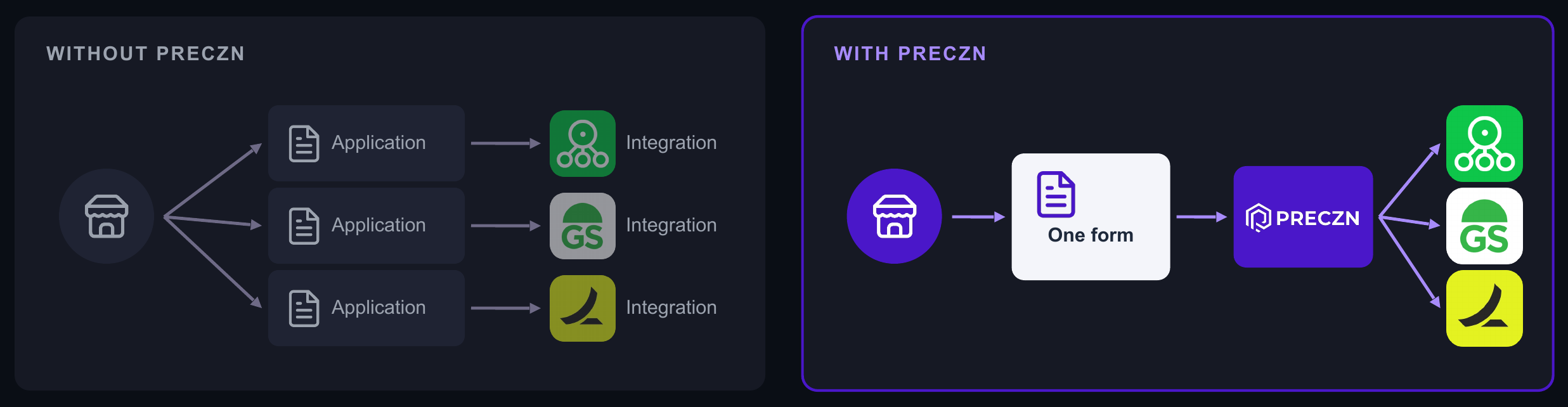
Without a combined form, you map each provider's requirements yourself and send the merchant a separate application for each.
The merchant enters shared business, ownership, and banking data once, accepts each provider's terms, and submits. Preczn then boards the merchant to every connection on the form.
The image compares boarding without Preczn, where each provider needs its own application and integration, with one Preczn form that boards the merchant to every provider.
Who this is for
- Platforms that sign a merchant up for two or more providers at the same time.
- Operations teams that send merchants a boarding link and want one link, not one per provider.
You don't need this page in these cases:
- The merchant needs only one provider, or you add providers at different points in the merchant's lifecycle. Use a single-connection form. See Boarding Forms.
- The merchant is already boarded at the provider. Link the existing credentials instead. See Linking Existing Credentials.
When to use this
| If you need to ... | Use ... | Not ... |
|---|---|---|
| Board a merchant to several providers in one submission | A multi-connection form | One form per provider |
| Board a merchant to one provider | A single-connection form | A multi-connection form |
| Add a provider after the merchant has already submitted a form | A new single-connection form for that provider | Re-sending the original form |
| Show the merchant only the fields still missing, in a form you build | The requirements endpoint, which lists the missing data for each connection | Asking for every field again |
| Ask the merchant for more information an underwriter requested | An RFI form, which takes one connection | A multi-connection form |
| Start processing for a merchant already boarded elsewhere | Linking existing credentials | Any boarding form |
How it works
A boarding form is a Preczn-hosted page on your domain, styled by a form template. Bank account details and tax information entered on the form are collected and stored by Preczn and don't pass through your servers. See Boarding Forms.
A multi-connection form works in five steps:
- Select. When you create the form, you name the connections it boards to. The merchant sees only those providers.
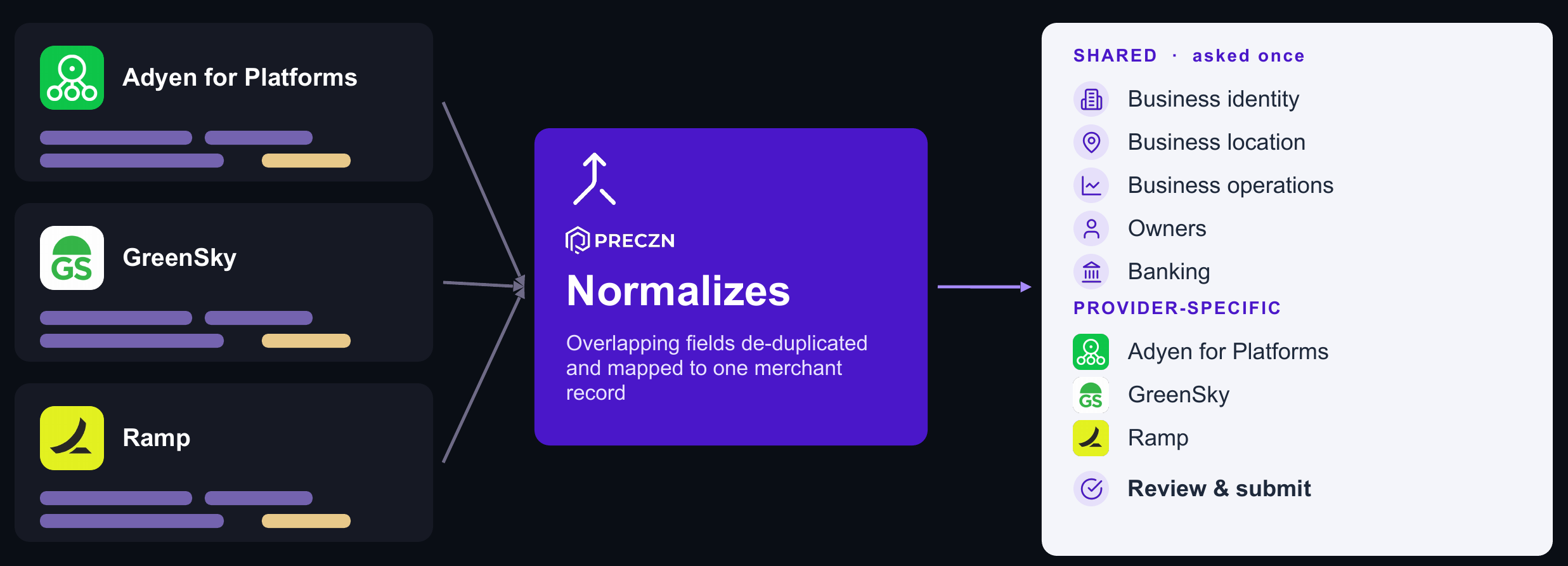
- Normalize. Preczn combines the requirements of every named connection. Fields the providers share are asked once and saved to one merchant record.
- Collect. The merchant completes the shared steps first, such as business details, owners, and banking. Then they complete one step for each connection that needs something extra, such as its terms and conditions, and review everything before submitting.
- Transmit. Preczn maps the merchant record into each provider's format and submits it to each connection. With auto-transmit on, this starts when the merchant submits.
- Redirect. After submitting, the merchant returns to the URL you supplied.
The image shows how the requirements of three providers combine into shared steps asked once, followed by one step for each provider.
Each connection is boarded and underwritten on its own. If one connection fails, the others continue, and connection-status webhooks report each outcome separately.
A form boards only connections that support Merchant Boarding. See Supported Connections.
Add a provider later
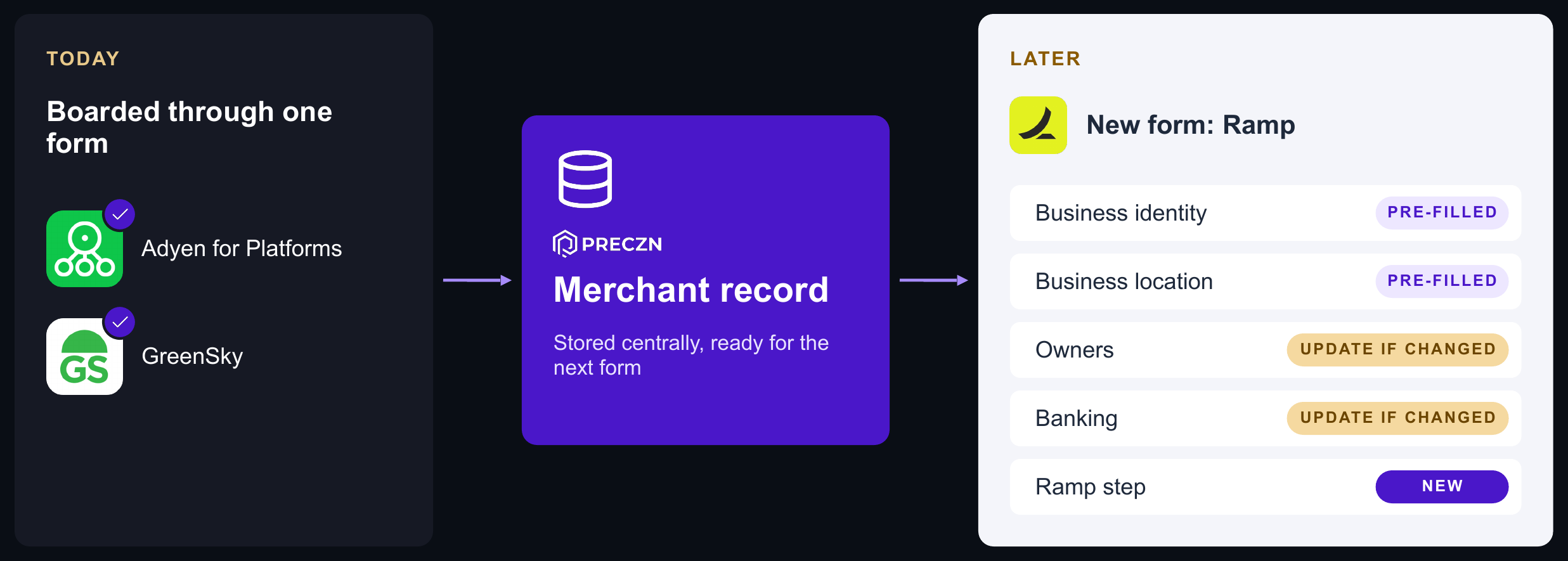
The form saves shared data to the merchant record, not to the form. When you offer the merchant another provider later, create a new form for that connection. It opens with the business, owner, and banking information the record already holds. The merchant updates anything that changed and completes the new provider's step.
The image shows a merchant boarded to Adyen for Platforms and GreenSky through one form, then offered Ramp later on a form that starts from the stored merchant record.
Prerequisites
- A branded domain for your boarding forms. See Configuring Domain Names.
- A form template. If the connections you combine use different custom fields, the template must include all of them. See Boarding Form Templates.
- A merchant record. See Creating Merchants.
- Each connection the form boards to, configured on your platform and added to the merchant. See Connection Configuration.
Outline
- Set up the domain and template. Do this once per platform. See Configuring Domain Names and Boarding Form Templates.
- Create the merchant and add connections. Add every connection the form will board to. See Creating Merchants and Connection Configuration.
- Create the form. Create a form that names several connections, from the Dashboard or the API. See Multi-Connection Boarding Forms and Creating Forms.
- Send the merchant the link. The merchant completes the form and is redirected to your return URL. See Boarding Forms.
- Submit for underwriting. With auto-transmit on, submission starts boarding for every connection. Otherwise, start boarding for each connection yourself. See Creating Forms.
- Track each connection. Follow each connection's status until it's active. See Merchant Onboarding and Merchant Webhook Payloads.
Example
A home services platform signs up contracting businesses. Each business needs card processing through Adyen for Platforms and a GreenSky account so it can offer its customers financing.
- The platform has already configured its boarding domain and a form template with auto-transmit turned on.
- When a business signs up, the platform creates a merchant record, adds the Adyen for Platforms and GreenSky connections, and creates one form for both.
- The business owner enters company, owner, and bank details once, completes the Adyen for Platforms and GreenSky steps, reviews the application, and submits.
- Preczn boards the business to both providers. The platform listens for connection-status webhooks and turns on card payments when the Adyen for Platforms connection becomes active, without waiting for GreenSky.
- Months later, the business wants corporate cards. The platform adds the Ramp connection and sends a Ramp form. The owner confirms the stored details and completes only the Ramp step.
Related
How-to guides
- Multi-Connection Boarding Forms
- Creating Forms
- Boarding Form Templates
- Configuring Domain Names
- Connection Configuration
Concepts and use cases
Reference
Updated about 2 hours ago