
Form template settings
Every form template setting, with its Dashboard label, API part, rules, and defaults.
This page lists every setting on a form template, with its Dashboard label, its API part for POST /v1/formTemplates, and its rules. To create or change a template, see Set up form templates.
The API takes multipart/form-data, so send every value as a string part, such as "true" or "48". Preczn converts each part to its type before it validates the request. For the full request schema, see Create Form Template.
Template details
| Dashboard label | API part | Required | Rule |
|---|---|---|---|
| Template Name | name | Yes | Letters, numbers, spaces, and - _ . , & % |
| Form Type | type | No | KYC or RFI. Default KYC |
| Domain | domain | Yes | One of your platform's approved domains |
| Expiration | expirationInHours | Yes | 1 to 2,160 hours. No API default |
The template name also identifies the template in the Dashboard. A domain that isn't approved for your platform returns 404. To set up a domain, see Configure a domain name.
A form's type overrides the template's. A KYC form collects a merchant's data for boarding. An RFI (request for information) form collects more data after boarding.
Expiration
expirationInHours sets how long a form link stays open after Preczn creates the form.
- API: the part is required and has no default. A request without it returns
400. - Dashboard: Expiration is prefilled with 72 hours. You can change it before you save.
- Forms: a form uses its own
expirationInHourswhen you send one. Otherwise it uses the template's value.
Data the merchant already saved stays on the merchant record after the link expires. To let the merchant finish, create a new form. To see what the merchant sees after the link expires, see When a link expires.
Branding
| Dashboard label | API part | Required | Rule |
|---|---|---|---|
| Logo | logo (file) | No | JPG or PNG, up to 250×100 pixels and 2 MB |
| Favicon | favicon (file) | No | ICO, PNG, or SVG, up to 64×64 pixels and 512 KB |
| Page Title | headingTitle | Yes | Letters, numbers, and spaces |
| Title Color | headingTitleColor | No | Hex color |
| Accent Color | headingAccentColor | No | Hex color |
| Button Text Color | buttonTextColor | No | Hex color |
| Button Accent | buttonAccentColor | No | Hex color |
A logo larger than 250×100 pixels returns 400 with the message Image dimensions exceed the limit of 250x100 pixels. The Dashboard rejects the file before it uploads. The form shows the logo at up to 160×40 pixels in its sidebar, so a wide logo reads best.
A favicon that breaks its rules also returns 400.
Colors
Each color sets one part of the form:
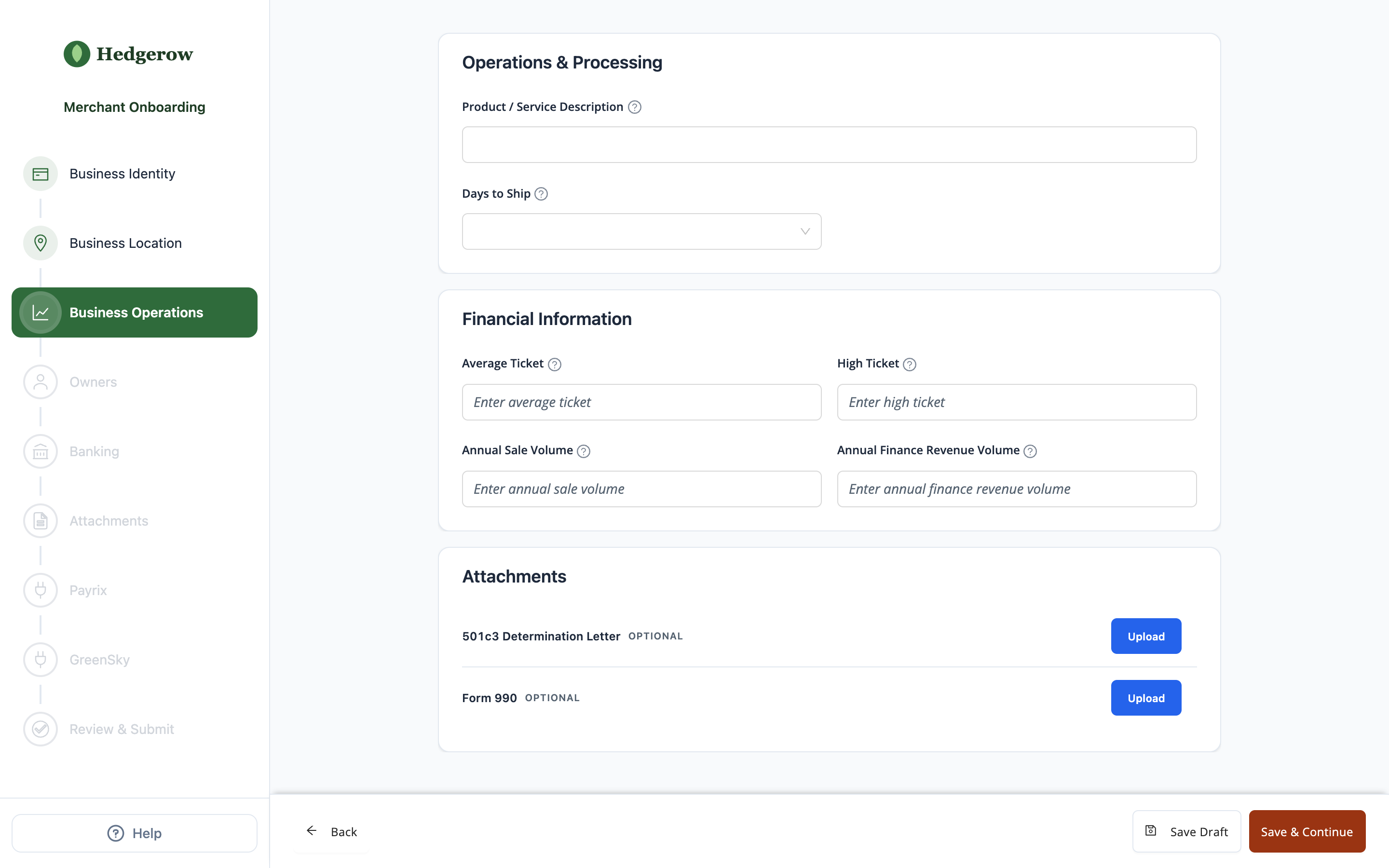
- Title color sets the title under your logo.
- Accent color sets the current step, completed step icons, and other highlights.
- Button text color sets the text on the primary button, such as Save & Continue.
- Button accent color sets the primary button's background.
For where the logo, title, and steps sit on the form, see Layout and navigation.
This form uses a green accent color, a dark green title color, a rust button accent color, and white button text:
The defaults depend on how you create the template. Select the Dashboard tab or the API tab.
The Dashboard prefills every color and always sends them.
| Color | Field | Prefilled value |
|---|---|---|
| Title | Title Color | #4014be |
| Accent | Accent Color | #4014be |
| Button text | Button Text Color | #edf0f5 |
| Button background | Button Accent | #4014be |
Preczn applies these values to a color part you omit.
| Color | Part | Default when omitted |
|---|---|---|
| Title | headingTitleColor | #000000 |
| Accent | headingAccentColor | #4013BE |
| Button text | buttonTextColor | #FFFFFF |
| Button background | buttonAccentColor | #808080 |
Check your colors for contrast
The current step always shows white text on the accent color. Choose an accent color dark enough for white text to stay readable, and a button text color that contrasts with the button accent color.
URLs and behavior
| Dashboard label | API part | Required | Rule |
|---|---|---|---|
| Return URL | returnUrl | Yes | URL. The merchant lands here after submitting |
| Expired Session URL | expirationUrl | Yes | URL. An expired link sends the merchant here |
| Terms of Service URL | tosUrl | No | URL. Rainforest forms only |
| Terms and Conditions | displayTos | Yes | Boolean. Shows each connection's terms step |
| Auto Transmit Merchant Data | autoTransmitMerchantData | No | Boolean. Default false |
| Display New User Login | displayNewUserLogin | No | Boolean. Default false |
| Display PCI SAQ | displayPciSaq | No | Boolean. Default false |
| MCC Codes | mccCodes | No | Comma-separated MCCs |
| NAICS Codes | naicsCodes | No | Comma-separated 2022 NAICS codes |
- Terms of Service URL: on a Rainforest form, this URL replaces Rainforest's terms link on the terms step. It has no effect on forms for other connections.
- Terms and Conditions: applies to KYC forms only.
- Auto Transmit Merchant Data: starts boarding when the merchant submits the form. See Automatic onboarding.
- Display New User Login and Display PCI SAQ: each adds a step for the connections that support it. See Connection steps.
- MCC Codes and NAICS Codes: limit the codes a merchant can pick. See Merchant classification codes.
Help and support
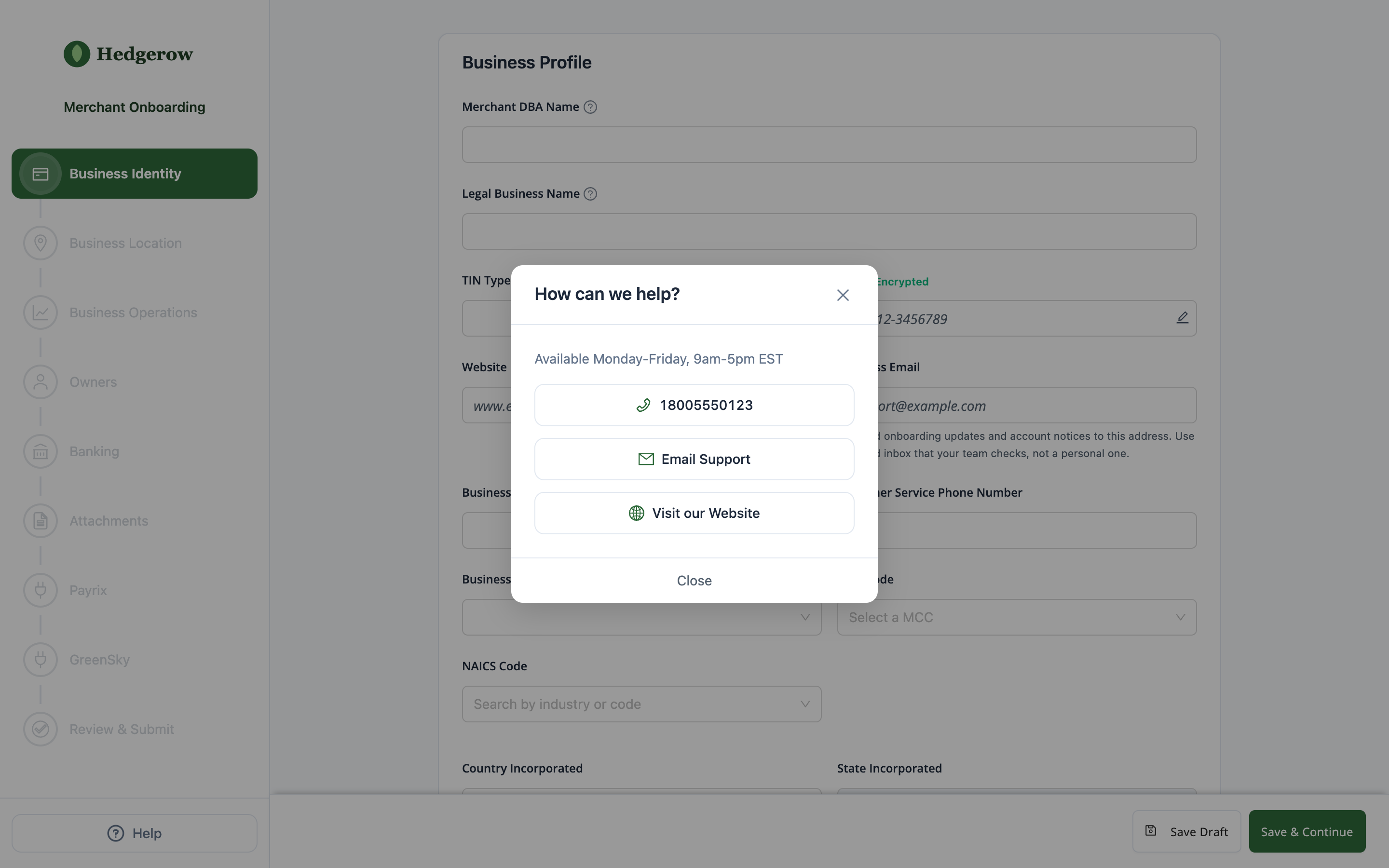
These settings fill the support window that merchants open from the Help button. The Help button appears only when you set at least one of them.
| Dashboard label | API part | Rule |
|---|---|---|
| Support Message | supportText | Text shown first in the window |
| Support URL | supportUrl | URL. Opens in a new tab |
| Support Phone | supportPhone | 10 digits, or 11 starting with 1 |
| Support Email | supportEmail | Email address. Opens the merchant's email client |
Send supportPhone as digits only. The Dashboard removes any other characters before it saves. The form shows a 10-digit number, or an 11-digit number that starts with 1, as (NNN) NNN-NNNN.
Field customization
| Setting | Where to set it |
|---|---|
| Show or hide a field or document | Show and hide fields |
| Length and character rules | Field rules and dropdown options |
| Dropdown options | Field rules and dropdown options |
| Help text under a field | Add help text to form fields |
| Welcome step | Add a welcome step |
Updated 6 minutes ago