
Add help text to form fields
Add a short line of guidance under a boarding form field or document upload, and write it so merchants enter the right value.
Help text, also called subtext, is a short line of guidance under a field or document upload on your boarding form. Field labels are fixed, so help text is how you tell merchants what your platform needs from a field: which value to enter, what to avoid, or why a document is worth uploading.
You set help text on a form template. Like other template settings, it applies only to forms created after you save the template. See Template inheritance.
Prerequisites
- A form template. See Set up form templates.
Add help text
Select the Dashboard tab or the API tab.
- In the Dashboard, go to Settings > Boarding Forms, and open the template.
- Select the Field Customization tab.
- Find the field or document, and select Edit.
- Enter your guidance in Helper Text.
- Select Save Updates.
-
Send the help text as the field's
displayAttributes.subTextpart toPATCH /v1/formTemplates/{formTemplateId}, or include it when you create the template withPOST /v1/formTemplates. See Update Form Template.For example, the part for the Bank Statement upload is
banking.attachments.bankStatement.displayAttributes.subText. The dots are part of the part name, not nested objects.
Where help text appears
Help text shows in small, muted text. Its position depends on the element:
- Input fields: directly below the input. While the field shows a validation error, the error replaces the help text. The help text returns when the merchant fixes the error.
- Document uploads: under the document name, below the description that Preczn shows for that document type. Your help text adds to the description and doesn't replace it.
- Set As Primary Account checkbox: on the Banking step, below the checkbox label.
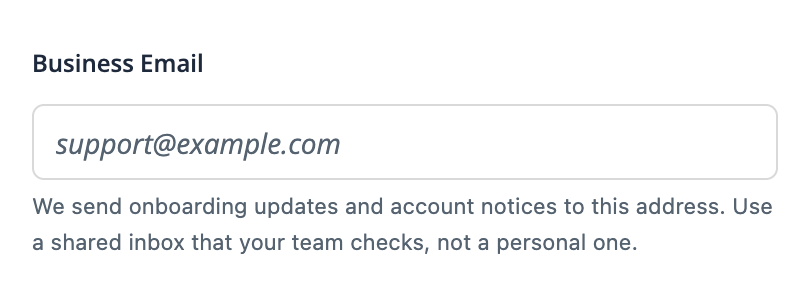
Help text doesn't appear on the Review & Submit step or in the upload dialog.
Write help text
Help text has no character limit. Long help text wraps onto as many lines as it needs and pushes the fields below it down the page, especially on phones and in fields that share a row. Keep it to one short sentence. For longer instructions, use a welcome step.
- Use plain text. Help text doesn't render Markdown, HTML, or links, and line breaks are removed.
- State what the merchant does or avoids, not what the field is. The label already names the field.
- For document uploads, don't repeat Preczn's guidance. The upload dialog already lists each document's requirements. Add only what your platform needs beyond that.
- To ask for optional information that helps your underwriting team, say why it's worth providing. Promise a faster review only when that's true for your process.
| Field or document | Example help text | Why it helps |
|---|---|---|
| Business Apartment, Suite, etc. | Suite or unit number. Don't enter a PO box. | Merchants sometimes enter a PO box. See Addresses and locations |
| Merchant DBA Name | The name customers see on receipts and card statements. | Merchants sometimes enter a personal name |
| Bank Statement | Upload an unlocked PDF. Password-protected files can't be processed. | A locked PDF fails, and the merchant uploads again |
| Driver License Number (optional) | Recommended: providing this can speed up your review. | Collects details underwriting may request later |
Updated 13 minutes ago